After installing a nice shiny new SBS 2011 server for one of our customers, we encountered an issue which was difficult to find a way around.
They have a requirement for remote access so Terminal Services (remote desktop) was enabled and set up.
At the point where we tried to install Office 2003, it seemed to install correctly but as soon as I tried to run Word, Powerpoint or Excel, I got the error message 'This feature is not available, contact your administrator' (or words to that effect).
Now a bit of basic Googling will lead you to the classic 'change user /install' and 'change user /execute' commands which are actually automatically applied when you use the 'Control Panel->Programs->Install Application on Remote Desktop...' route.
I tried various permutations of these installation methods including running the Office Setup.exe as administrator with no success.
Having gleaned a few bits of information from others having similar problems I came up with a solution that worked for me.
Firstly, I installed Office using 'Control Panel->Programs->Install Application on Remote Desktop...'.
Then the fix:
It would seem that the initial problem is related to permissions on a folder buried inside the AllUsers folder.
This brings about problems of it's own as the folder is hidden and locked.
In short, if you click Start and Run and type/copy & paste "C:\ProgramData\Application Data\Microsoft\Office", you should see a DATA folder in the resulting window.
I right clicked on this and under the security tab, gave 'Everyone' full permissions.
This then enabled me to run Word and Excel without the error window popping up, but the EULA kept appearing every time either one was opened.
In order to try to resolve this final niggle, I right clicked on Word and looked for 'Run as Administrator' but it wasn't available so I selected properties and 'Advanced' but 'Run as Administrator' was greyed out.
I selected the 'Compatibility' tab and put a tick in the 'Run this program as an administrator' box under 'Privilege Level' followed by Apply and OK.
I ran Word again, agreed to the EULA and closed it back down again, went back into Word's properties and removed the tick, applied and okayed it and re-ran Word... resolved!
Following the same procedure on Excel had the same results and now both run happily.
Simples!
Thursday, 30 August 2012

Wednesday, 1 August 2012
Amanda Ogelsby Charity Skydive

On Sunday 29th July 2012, Amanda Ogelsby bravely leapt from a plane above Nottinghamshire to raise money for Diabetes UK. If you would like to make a donation to Diabetes UK, please do so at Amanda's 'Just Giving' page
To share Amanda's Skydive experience, click here to view her video.
Friday, 25 May 2012
Laptop Battery Not Working - Discharge Static
If your battery is not powering up your laptop, one of the most common reasons is that there is too much static in your machine. Remove the battery and power lead, hold the power button for 10 seconds to discharge the static. Replace battery and hopefully you are back up and running.
Thursday, 17 May 2012
Cannot Close Additional Mailboxes in Outlook 2007/2010 with Exchange 2010
When a user has been given full access permissions to a mailbox in Exchange 2010 (In Exchange Management Console under ‘Recipient Configuration’ -> ‘Mailbox’, right click the User and select Manage Full Access Permissions), Outlook 2007 and Outlook 2010 will automatically display this mailbox.
After removing the Additional Mailbox/es in Outlook’s Account Settings and going through the ‘Manage Full Access Permissions’ process above and removing the name of the user who has the now unwanted mailbox, it still remains in the list of mailboxes in Outlook.
In order to remove this residual mailbox from the user’s Outlook, log in to the Exchange Server and click ‘Start’ -> ‘Run’, type ‘adsiedit.msc’and click ‘OK’.
When ADSIEdit opens up, in the left pane will be ADSIEdit
Underneath this you should see ‘Default naming context [YOUR.SERVER.NAME]’.
If it says ‘Configuration [YOUR.SERVER.NAME]’, ‘RootDSE [YOUR.SERVER.NAME]’ or
‘Schema [YOUR.SERVER.NAME]’, right click on it and select ‘Settings’.
Under ‘Connection Point’ -> ‘Select a well know naming context:’ pick ‘Default naming context’ from the dropdown list and click ‘OK’.
Now drill down in the left pane to the OU that contains the User whose mailbox you want to stop automatically sharing.
On the relevant ‘CN=UserName‘ you want to stop auto-sharing, right click and select ‘Properties’.
Under the ‘Attribute Editor’ tab, scroll down to ‘msExchDelegateListLink’ and highlight it, then click the ‘Edit’ button.
Highlight the User Name you wish to STOP automatically sharing TO, and click ‘Remove’.
Click ‘OK’, ‘Apply’, and ‘OK’ again.
You can now close ADSIEdit on the server.
The next time you open Outlook, after a short time, the unwanted mailboxes should disappear.
Monday, 2 April 2012
Scan to file not working on 2008 Server - Fix
Starting to migrate stuff to our new 2008 Server, we transferred the shared Scans folders and reconfigured the MFDs (scanners) to point to the new Hostname - 2008SERVER.
Everything appeared to be set up correctly, all permissions applied on the shared folders, shares visible on \\2008SERVER etc. but communication errors every time any of the machines tried to scan.
It turns out that there's a default setting on the 'Default Domain Controllers' Group Policy that is throwing a spanner in the works.
Open your Server Manager and drill down as follows:
Features
Group Policy Management
Forest:.....
Domains
YourDomain.local
Group Policy Objects
Highlight 'Default Domain Controllers Policy' and click show all in the right pane.
You will see that the Policy 'Microsoft network server: Digitally sign communications (always)' is Enabled.
Right clicking on 'Default Domain Controllers Policy' in the left pane and selecting Edit will allow you to drill down and change this policy to 'Disabled' as below:

Everything appeared to be set up correctly, all permissions applied on the shared folders, shares visible on \\2008SERVER etc. but communication errors every time any of the machines tried to scan.
It turns out that there's a default setting on the 'Default Domain Controllers' Group Policy that is throwing a spanner in the works.
Open your Server Manager and drill down as follows:
Features
Group Policy Management
Forest:.....
Domains
YourDomain.local
Group Policy Objects
Highlight 'Default Domain Controllers Policy' and click show all in the right pane.
You will see that the Policy 'Microsoft network server: Digitally sign communications (always)' is Enabled.
Right clicking on 'Default Domain Controllers Policy' in the left pane and selecting Edit will allow you to drill down and change this policy to 'Disabled' as below:
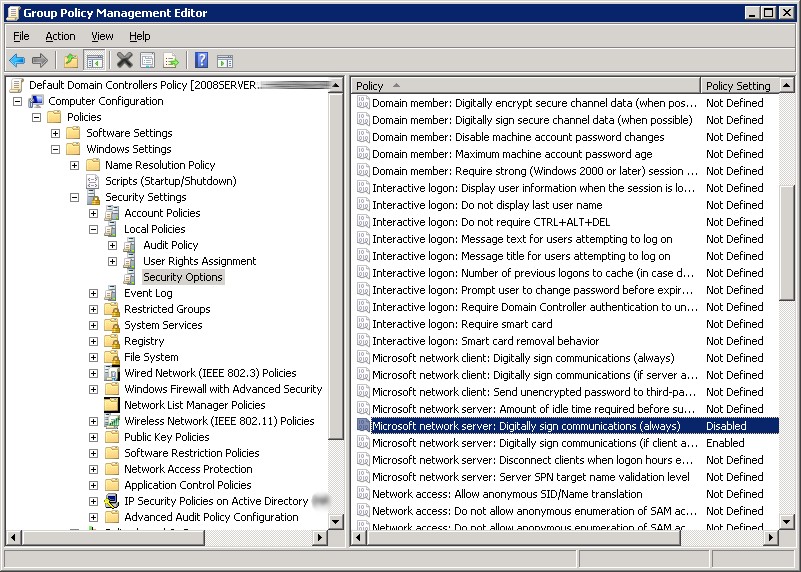
Clck Start -> Run, type 'gpupdate /force' ond click OK to ensure the change is made and your MFD/Scanner should now be able to scan to file on your new 2008 server.
Thursday, 16 February 2012
Apple releases printer drivers for Canon, Samsung, others
Apple has released a slew of updated printer drivers, but chances are the only ones most of us will care about are those for Canon, Ricoh, and Samsung printers.
For Canon, Apple released Printer Drivers 2.8, providing the latest printing and scanning software for OS X Lion and OS X 10.6; those drivers will help those same OSes work with roughly a jillion different Canon printers and multifunctions. Ricoh owners can get version 2.2 of their drivers for the same OSes and covering an equally enormous roster of machines. And for Samsung, Apple provided version 2.3 of its drivers, again for the last two versions of OS X; ditto on the enormity of the list of supported hardware.
At the same time, Apple also released drivers for printers from Gestetner, Infotec, and Lanier, but those are likely to be of less interest to most Macworld readers: Gestetner and Lanier both specialize in selling "document solutions" systems to enterprise customers, while Infotec is a reseller catering to that same market.
For Canon, Apple released Printer Drivers 2.8, providing the latest printing and scanning software for OS X Lion and OS X 10.6; those drivers will help those same OSes work with roughly a jillion different Canon printers and multifunctions. Ricoh owners can get version 2.2 of their drivers for the same OSes and covering an equally enormous roster of machines. And for Samsung, Apple provided version 2.3 of its drivers, again for the last two versions of OS X; ditto on the enormity of the list of supported hardware.
At the same time, Apple also released drivers for printers from Gestetner, Infotec, and Lanier, but those are likely to be of less interest to most Macworld readers: Gestetner and Lanier both specialize in selling "document solutions" systems to enterprise customers, while Infotec is a reseller catering to that same market.
Monday, 15 August 2011
QR Codes- 2D Barcodes - How cool?!
Have you noticed these square blocky things on telly and in various other places and wondered what they're all about?

They are 2 dimensional barcodes known as QR Codes (Quick Response Codes) which can contain a lot more information than the barcodes you're used to.
For example, the one above contains UKBITS Limited contact details, name, phone number, website details and email address.
If you scan it using a suitable app on your smartphone (see below!) it will display these details and offer the choice of adding them into your contacts - no need to type it all in manually!
The ones on the TV are for such things as Recipes on cooking programmes.
You can use these codes to convey various different types of information such as:
Text
Website URL
Telephone number
SMS Message
Email Address
Email Message
Contact Details (VCARD) - as above
Calendar Event (VCALENDAR)
Google Maps Location - works with phone mapping for sat nav.
Wifi Login (Only on Android)
Paypal Buy Now
Facebook Profile/Like LinkedIn Profile/Share
Myspace Profile
Twitter Profile/Status update
iTunes Link
YouTube Video
We've tested various smartphone scanner apps with this and the most impressive by far was 'i-nigma'.
Give it a go, download it and try scanning something like this link below to WikiPedia's page about these QR Codes!

Subscribe to:
Posts (Atom)